How to Install IPTV on Amazon Firestick Devices
In This Guide We Will Provide Steps To Download And Install The RocBox Easy Player App, One Of The Best IPTV Apps For Firestick.
Step 1: Install And Set Up The AFTV News Downloader App
Navigate to the Home Screen:
On your Firestick, press the Home button on your remote to go to the main screen.
Search for Downloader:
Select Find > Search from the menu.
Type Downloader in the search bar and select it from the suggestions.
Download the App:
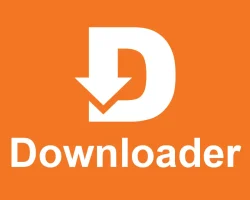
From the search results, click on the orange Downloader app icon shown above.
Select Download or Get to install the app.
Wait for the installation to complete.
Launch the Downloader App:
Open the Downloader app from the Apps & Channels section.
Allow any permissions when prompted.
Step 2: Enable Apps from Unknown Sources
Go to Settings:
Navigate back to the Firestick Home Screen.
Select the Settings option (gear icon).
Access Developer Options:
Go to My Fire TV > Developer Options.
Enable Unknown Sources:
Select Install Unknown Apps or Apps from Unknown Sources.
Scroll and find the Downloader app and toggle it to ON. **Note: If “Developer Options” is not visible, select About and repeatedly press the Select button on your remote to enable it.**
Step 3: Use The Downloader App To Install The RocBox Media Player
Launch Downloader:
Open the Downloader app from your Apps & Channels.
Enter The URL Or Download Code:
On the home screen of the Downloader app, you will see a URL field.
Enter the URL: http://aftv.news/****** or the provided download code in the URL field and click Go.
Download the APK:
The Downloader app will fetch the file from the link provided.
Wait for the download to complete.
Install the APK:
Once the download finishes, you’ll see an installation prompt.
Select Install and wait for the app to install.
Delete the APK (Optional):
After installation, you can free up storage by deleting the APK file.
Select Delete when prompted.
Step 4: Open The RocBox Media Player
Access Apps & Channels:
Press and hold the Home button on your remote.
Select Apps from the menu.
Find The RocBox Media Player IPTV app:
Scroll through your apps to locate the newly installed application.
Launch the App:
Highlight the app and press the Select button on your remote to open.
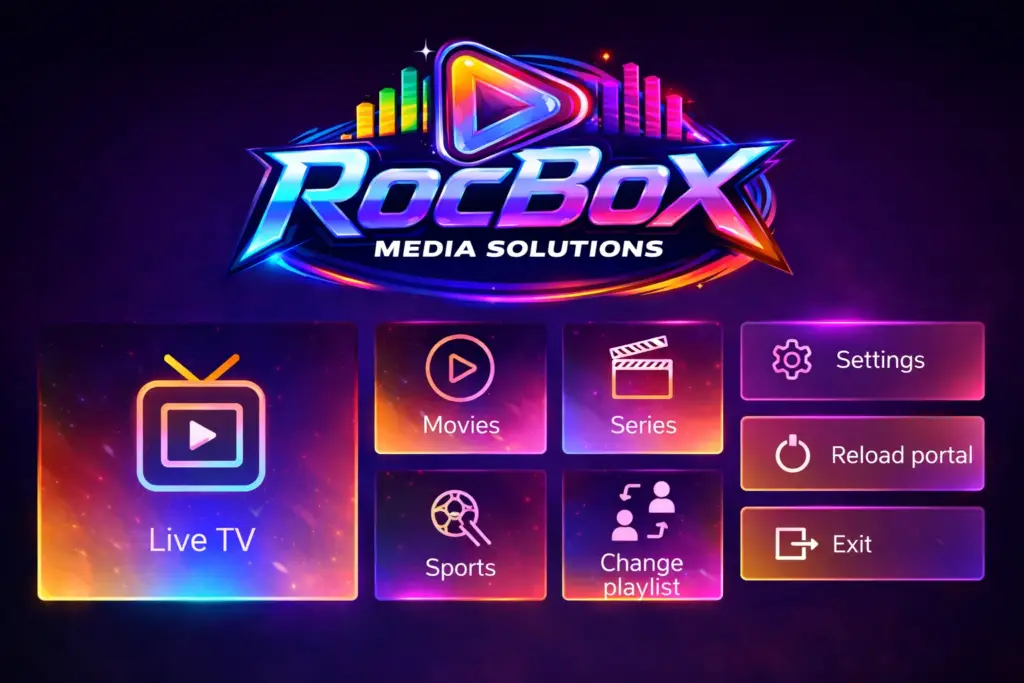
The app is very intuitive, you can navigate the Live TV, Movies, and Series, to find exactly what you would like to watch.
Troubleshooting Tips For The RocBox Media Player App
Slow Downloads: Ensure your Firestick is connected to a strong Wi-Fi network.
Storage Issues: Delete unused apps or clear cache in the Firestick settings to free up space.
Error Messages: Double-check the URL or code for IPTV app entered on the Firestick to ensure the Downloader app has proper permissions enabled.
Why Choose The RocBox Media Player App For Firestick?
The RocBox Media Player is one of the best IPTV apps for Firestick, offering seamless streaming of your favorite content. With its simple setup process using the Downloader app, you can enjoy live TV, movies, and more, in just a few steps.
FAQs About Installing The RocBox Media Player on Firestick
What Is The RocBox Media Player?
The RocBox Media Player is an IPTV app for Firestick that allows users to stream live TV, movies, and other entertainment content seamlessly.
Why Do I Need The Downloader App For Installation?
The Downloader app enables you to download APK files directly to your Firestick, bypassing the Amazon App Store restrictions.
Is The RocBox Media Player free to use?
Yes, the app is free to download and install. However, some content or features may require RocBox Media Solutions Suggestions.
How Do I Fix Issues If The App Does Not Work After Installation?
Make sure you entered the correct URL or Downloader code into the URL field on the Downloader app.
Check your internet connection. Make sure you have sufficient download speeds. A minimum of 16Mbps is required for a stable connection.
Clear the cache or reinstall the app. If the problems persist, feel free to reach out to us on Telegram or WhatsApp 24/7.
Can I install other IPTV apps on Firestick using this method?
Yes, this method works for most IPTV apps on Firestick that provide APK files or Downloader codes.
Does The RocBox Media Player App work on other devices?
You can install The RocBox Media Player App on the following types of devices:
- Android Devices:
- Smartphones
- Tablets
- Android-based e-readers (like Onyx Box)
- Amazon Fire Devices:
- Firestick
- Fire TV
- Fire Tablets
- Windows PCs:
- Using Android emulators like BlueStacks, NoxPlayer, or LDPlayer
- Mac Computers:
- Using Android emulators (e.g., BlueStacks)
- Android TV Devices:
- Smart TVs running Android TV OS
- Nvidia Shield
- Xiaomi Mi Box
- Linux PCs:
- Using tools like Anbox or Waydroid
- Chromebooks:
- With support for Android apps (Google Play Store enabled)
- Wear OS Devices:
- Smartwatches running Wear OS that support APK installations
- Car Infotainment Systems:
- Android-based car systems
- Set-Top Boxes:
- Generic Android-based set-top boxes