How to Install IPTV on Android Boxes & TVs
In This Guide We Will Provide Steps To Download And Install The RocBox Media Player App, One Of The Best IPTV Apps For Any Android Box or TV.
If you are looking for a seamless way to enjoy your favorite media content on an Android box or TV, The RocBox Media Player is a fantastic option for those looking for the best IPTV app for Android TV. This app not only enhances your media streaming experience but also stands out as one of the best IPTV apps for Android TV. With its user-friendly interface and extensive compatibility, it’s an ideal choice for streamers. Follow this simple guide to install The RocBox Media Player.
Navigate to the Home Screen:
From the Home screen, scroll right to the Apps tab. Scroll down to the Search for apps and games bar.
Search for Downloader:
Type Downloader in the search bar and select it from the suggestions.
Download the App:
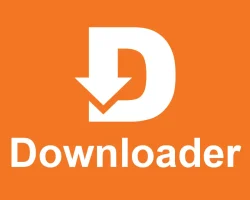
From the search results, click on the orange Downloader app icon shown above.
Select Download or Get to install the app.
Wait for the installation to complete.
Launch the Downloader App:
Open the Downloader app from the Apps & Channels section.
Allow any permissions when prompted.
Step 2: Enable Unknown Sources
- Navigate to your Android TV’s Settings.
Select Security & Restrictions or Device Preferences.
Enable the option for Unknown Sources to allow the installation of third-party apps.
Ensure Stable Internet Connection:
Connect your Android TV to a reliable Wi-Fi network for uninterrupted downloading and installation.
What Is The RocBox Media Player?
The RocBox Media Player is an IPTV app for Android that allows users to stream live TV, movies, and other entertainment content seamlessly.
Why Do I Need The Downloader App For Installation?
The Downloader app enables you to download APK files directly to your Android device, bypassing the Google Play Store restrictions.
Is The RocBox Media Player free to use?
Yes, the app is free to download and install. However, some content or features may require RocBox Media Solutions Suggestions.
How Do I Fix Issues If The App Does Not Work After Installation?
Make sure you entered the correct URL or Downloader code into the URL field on the Downloader app.
Check your internet connection. Make sure you have sufficient download speeds. A minimum of 16Mbps is required for a stable connection.
Clear the cache or reinstall the app. If the problems persist, feel free to reach out to us on Telegram or WhatsApp 24/7.
Can I install other IPTV apps on Android using this method?
Yes, this method works for most IPTV apps on Android that provide APK files or Downloader codes.
Does The RocBox Media Player App work on other devices?
You can install The RocBox Media Player App on the following types of devices:
- Android Devices:
- Smartphones
- Tablets
- Android-based e-readers (like Onyx Box)
- Amazon Fire Devices:
- Firestick
- Fire TV
- Fire Tablets
- Windows PCs:
- Using Android emulators like BlueStacks, NoxPlayer, or LDPlayer
- Mac Computers:
- Using Android emulators (e.g., BlueStacks)
- Android TV Devices:
- Smart TVs running Android TV OS
- Nvidia Shield
- Xiaomi Mi Box
- Linux PCs:
- Using tools like Anbox or Waydroid
- Chromebooks:
- With support for Android apps (Google Play Store enabled)
- Wear OS Devices:
- Smartwatches running Wear OS that support APK installations
- Car Infotainment Systems:
- Android-based car systems
- Set-Top Boxes:
- Generic Android-based set-top boxes